Designing Performant Motion Graphics
for the Web
Adobe Web Platform Team
- Make the web more expressive
- Advocate for designers
- Contribute to browsers
- Contribute to web standards
About Me
- Web developer
- Browser engineer
- Current Project: CSS Filters in Firefox
Overview
- Motion Graphics
- Hardware
- How Browsers Draw Web Pages
- CSS Animation Performance
- Key Takeaways
Motion Graphics
Motion Graphics Defined
Any change or movement of pixels over time.
Show or Hide Content
Direct the User's Attention
Benefits of Motion
- Keeps the user in context during user interface changes.
- Gradual changes are easier to follow than sudden changes.
Motion is Powerful
- Humans instinctively look at movement.
- Be careful where you direct their attention.
Good Performance Helps
- Delights your user.
- Adds credibility to your message.
Poor Performance Hurts
- Frustrates your user.
- Distracts your user.
- Looks unprofessional.
Performance Holy Grail
60 frames per second
Performance is Hard
One slow frame can interrupt an otherwise smooth experience.

Hardware
CPU
Central Processing Unit
CPU
General purpose processor
CPU
Typically 1-8 big cores

Big Cores
Can process anything— network packets, mouse input, etc.
GPU
Graphics processing unit
GPU
Highly specialized processor
GPU
Hundreds of little cores

Pixels and Points
- Each core is specialized to process a pixel (r,g,b) or a point (x,y,z).
- Together, many cores can process lots of pixels or points in parallel.


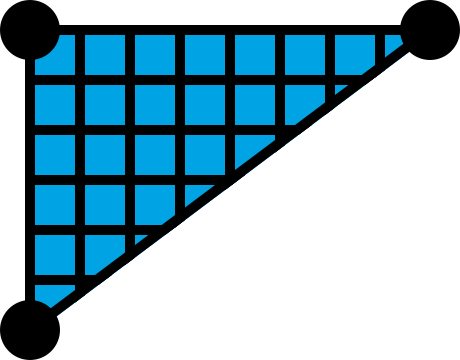
Triangles
- GPUs specialize in drawing triangles.
- Triangles are made of 3 points and filled in with pixels.
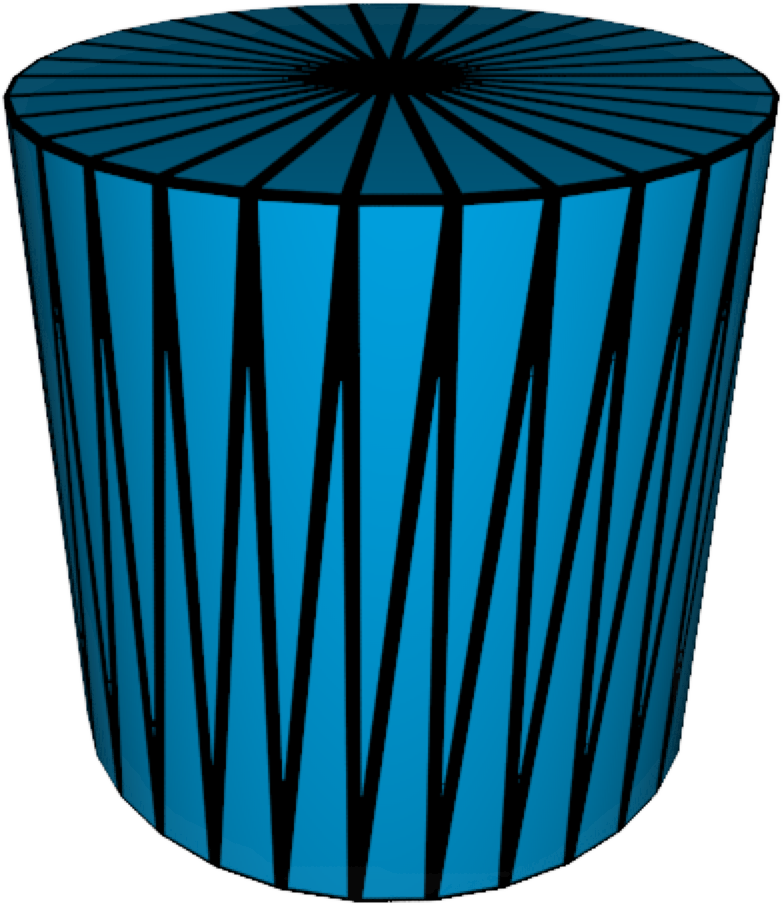
Shapes
All shapes can be made of triangles.
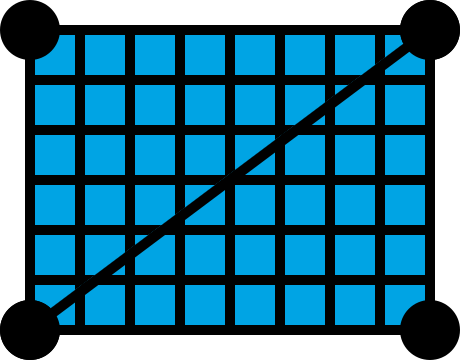
Rectangles
- Two triangles make a rectangle.
- Browsers draw lots of rectangles.
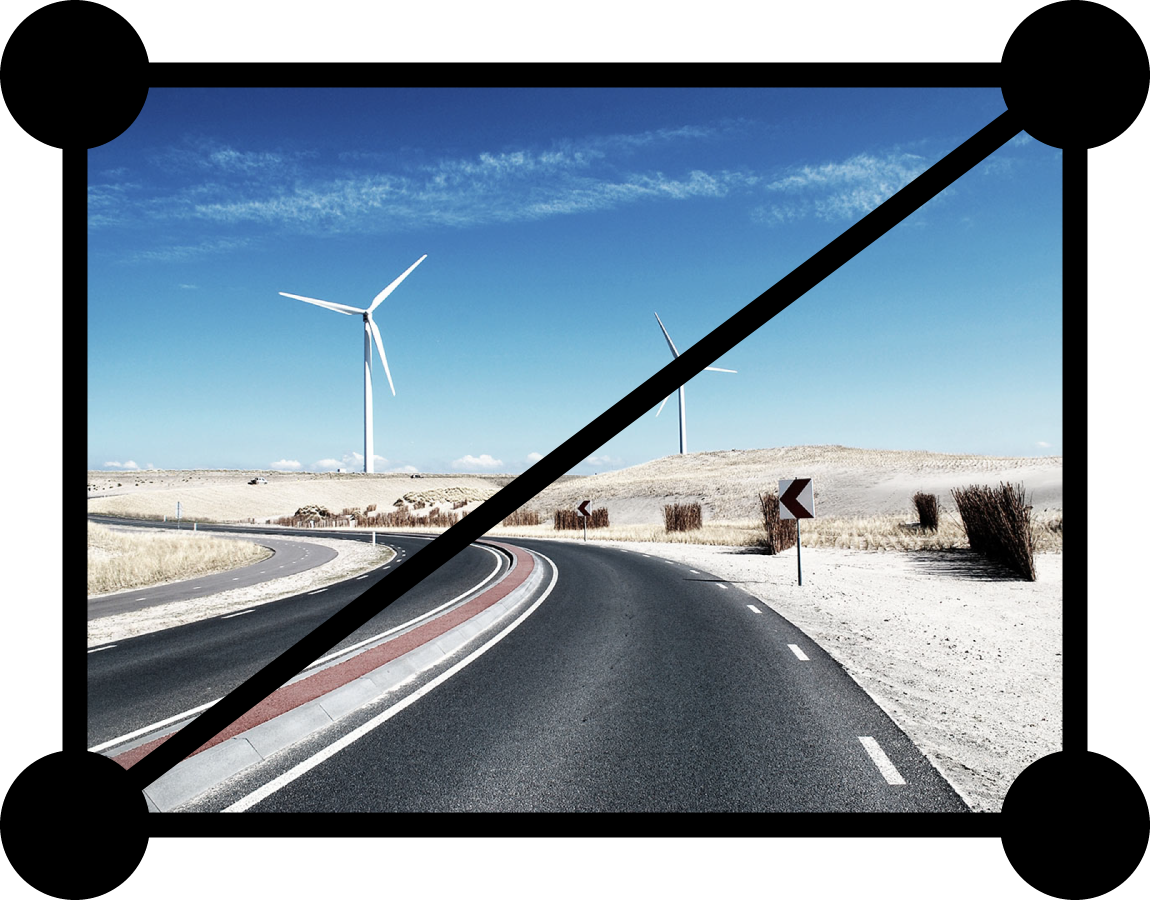
Texturing
- GPUs can apply images to the surfaces of triangles.
- These images can be anything and are known as "textures".
Screen Drawing
GPUs also specialize in drawing lots of triangles (and their pixels) to the screen quickly.

Pixel Moving
GPUs can move, scale, or rotate triangles (and their pixels) quickly.
Shading
GPUs can modify a lot of pixels in the same way quickly.
GPUs are Powerful
Millions of textured triangles
How Browsers Draw Web Pages
Browser
Browser instructs the CPU and GPU to work together and draw a web page.
Two Types of HTML Elements
- Hardware Accelerated Elements
- Non-Hardware Accelerated Elements
Hardware Accelerated Elements
Use the GPU to draw to the screen.
Non-Hardware Accelerated Elements
Draw into hardware accelerated elements, which draw to screen.
Causes of Hardware Acceleration
will-change
#some-element {
  will-change: transform;
}
Causes hardware acceleration.
3D Transforms
#some-element {
  transform: translate3d(0, 0, 0);
}
Cause hardware acceleration.
2D Transforms
#some-element {
  transform: translate(0, 0);
}
Don't cause hardware acceleration, unless animated.
Transform Animation
#some-element {
  transition: transform linear 1s;
}

.initial {
  transform: translate(0, 0);
}

.final {
  transform: translate(100px, 100px);
}
Causes hardware acceleration during the animation.
Opacity Animation
#some-element {
  transition: opacity linear 1s;
}

.initial {
  opacity: 0;
}

.final {
  opacity: 1;
}
Causes hardware acceleration during the animation.
Filter Animation
#some-element {
  transition: filter linear 1s;
}

.initial {
  filter: grayscale(0);
}

.final {
  filter: grayscale(1);
}
Causes hardware acceleration during the animation.
Overlap
When an element appears on top of a hardware accelerated element, it also becomes hardware accelerated.

Lifecycle of a Hardware Accelerated Element

The Element
1. Parsing
CPU reads and interprets HTML & CSS.
2. Layout
- CPU determines the size and position of the element.
- CPU determines the size and position of child elements.

3. Determine Hardware Acceleration
- CPU decides whether the element is hardware accelerated or not, based on the HTML & CSS.
- Let's assume the element is hardware accelerated.
4. Painting
CPU draws the element and its children into an offscreen image (aka "texture").

5. Synchronization
CPU uploads the element's texture to the GPU.
6. Triangulation
GPU creates two or more triangles representing the element.

7. Screen Positioning
GPU decides how to position, rotate, or scale the element's triangles on the screen.

8. Texturing
GPU applies the element's texture to the triangles.
9. Special Effects
If needed, GPU modifies the pixels on the triangle for special effects like CSS Filters (drop-shadow, grayscale, etc.).
10. Compositing
GPU draws the element's triangles on top of the other elements in your page.
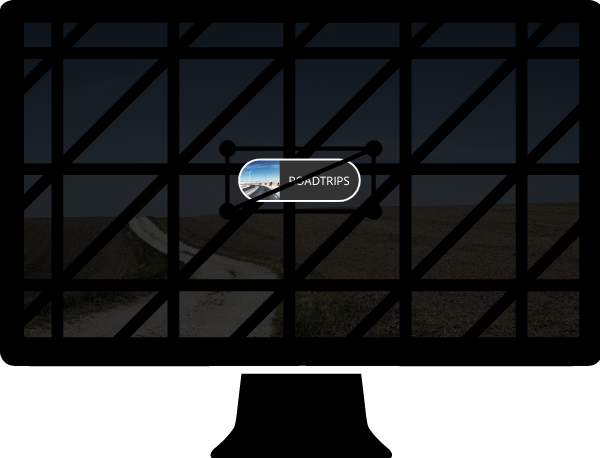
Lifecycle of a Hardware Accelerated Element
CSS Animation Performance
Less is More
- The less the browser has to do every frame, the better your performance.
- In other words, the less the CPU and GPU have to do every frame, the better.
Reduce CPU Usage
Because we can.
Example Site

Height Animation
Transform Animation
Height Animation
header {
  transition: height ease-in 1s;
}

.initial {
  height: 0;
}

.final {
  height: 200px;
}
Appearance Changes
Every frame, the element's size and contents change.
Height Animation
Every frame, the browser has to do almost every costly step.

Transform Animation
body {
  transition: transform ease-in 1s;
}

.initial {
  transform: translate3d(0, -200px, 0);
}

.final {
  transform: translate3d(0, 0, 0);
}
Constant Appearance
- Every frame, the element's size and contents stay the same.
- Only its position on the screen changes.
Transform Animation
Every frame, the browser can skip many costly steps.

Skipping Synchronization
- Skipping texture uploads from the CPU to the GPU can save a lot of time.
- The CPU and GPU can work more independently.
Live Demo
Safari Debug Menu
Open Terminal and enter the following:
defaults write com.apple.Safari IncludeInternalDebugMenu 1
Restart Safari and navigate to:
> Debug > Drawing/Compositing Flags > Show Compositing Borders
Key Takeaways
Design for the GPU
Design animations and transitions intended for the GPU:
- move, rotate, scale
- adjust opacity
- blur, drop-shadow, grayscale, etc.
- any creative combination of the above
Code for the GPU
Animate CSS properties intended for the GPU:
- transform
- opacity
- filter
Reduce Start Up Time
Hardware accelerate elements before an animation to remove initial CPU work.
#commonly-animated-element {
  /* Force acceleration on current browsers. */
  transform: translateZ(0);

  /* Force acceleration on future browsers. */
  will-change: transform;

  transition: transform linear 1s;
}
Trust the Browser
Don't hardware accelerate everything. It wastes GPU memory.
More Reading
Thank you!
Max Vujovic | @mvujovic | mvujovic.github.io/MAX2014
Adobe Web Platform Team | @adobeweb | webplatform.adobe.com